


Zoom at ÀÖČ„ÊÓÆ”
Zoom is a powerful collaboration tool that enables remote teaching, virtual meetings, and even phone calls and text messaging.
Signing In and Launching Zoom
All faculty and staff are granted full Zoom accounts. New staff activate their Zoom account by clicking the blue ‘Zoom’ icon across the top of the WOU Portal page. The Zoom link in Portal opens the Zoom settings webpage where you can set preferences for Zoom, manage your meeting recordings, and schedule meetings.
The Zoom application runs on Windows, Mac, Android and iPhone. Launch Zoom by double clicking ‘Zoom’ on the Windows Desktop or opening ‘Zoom’ from a Mac’s ‘Applications’ folder. If you can’t find Zoom on your computer, you may download it from (download and install ‘Zoom Client for Meetings’)
To log into Zoom, first sign in to the WOU Portal from your web browser. Then, from the Zoom application’s login screen, click the ‘SSO’ button. Enter in “wou-edu”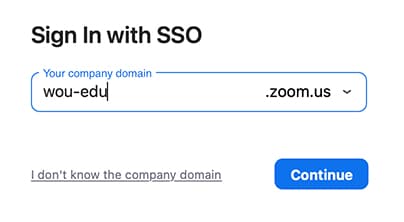
Zoom Phone
ÀÖČ„ÊÓÆ” uses Zoom as our Unified Communications platform. The Zoom application’s menu bar will display a ‘Phone’ option if you’ve been assigned a phone number. You’ll use the Zoom client on your computer and/or your smartphone to place and answer phone calls. You can even send texts with your WOU extension from Zoom Phone. More information specific to Zoom Phone is on the Zoom Phone Frequently Asked Questions page.
Tips for Teaching with Zoom
Faculty at WOU have made amazing adaptations to continue educating remotely when required. Here are several suggestions if you’re teaching all or part of a course over Zoom:
Test before class
- Verify you have Zoom installed and are able to sign in with the ‘SSO’ button. Once signed in, click the ‘Profile Icon’ in the top right and confirm you see see
@wou.edu next to the word ‘Licensed’ - Connect to a test meeting at to verify your audio and camera work properly
Optimize your delivery
- If you’re hosting from a large room or shared space, you’ll want to use a headset to avoid an ‘echo’ sound for the students
- Try to have a light in front of you rather than behind
- Remember to look at the camera to create the effect of eye contact
- Speak at a natural voice level rather than as though you’re “on speakerphoneâ€
Use Zoom’s tools to keep students engaged
- Plan moments to check-in with students using Zoom’s built-in “thumbs up†feedback feature
- Tell students they can use the ‘speed up’ or ‘slow down’ buttons in Zoom to let you know if they’re comfortable with your pace
- Use the ‘poll’ feature in Zoom to collect feedback from your students and keep them involved
Many more teaching suggestions are included in .
Hosting Large Events in Zoom
It’s possible to host very large meetings in Zoom using the Webinars function. Zoom Webinars include special features like a higher maximum participants, the ability to specify ‘speakers’ and ‘panelists’, and extra security features like automatically muting all guests. Contact the WOU Zoom team at zoom@wou.edu to learn about adding the Webinar ability to your account for a per-event charge.
